Your next appointment, your technician’s arrival, and the report afterward all have a home in the Waves app. This guide walks through the everyday tasks new Waves Pest Control customers in Southwest Florida need first.
The app is useful for one-time services, too: you can check your appointment, read your report, and find your receipt. Screenshots use sample account information.
Start here: sign in
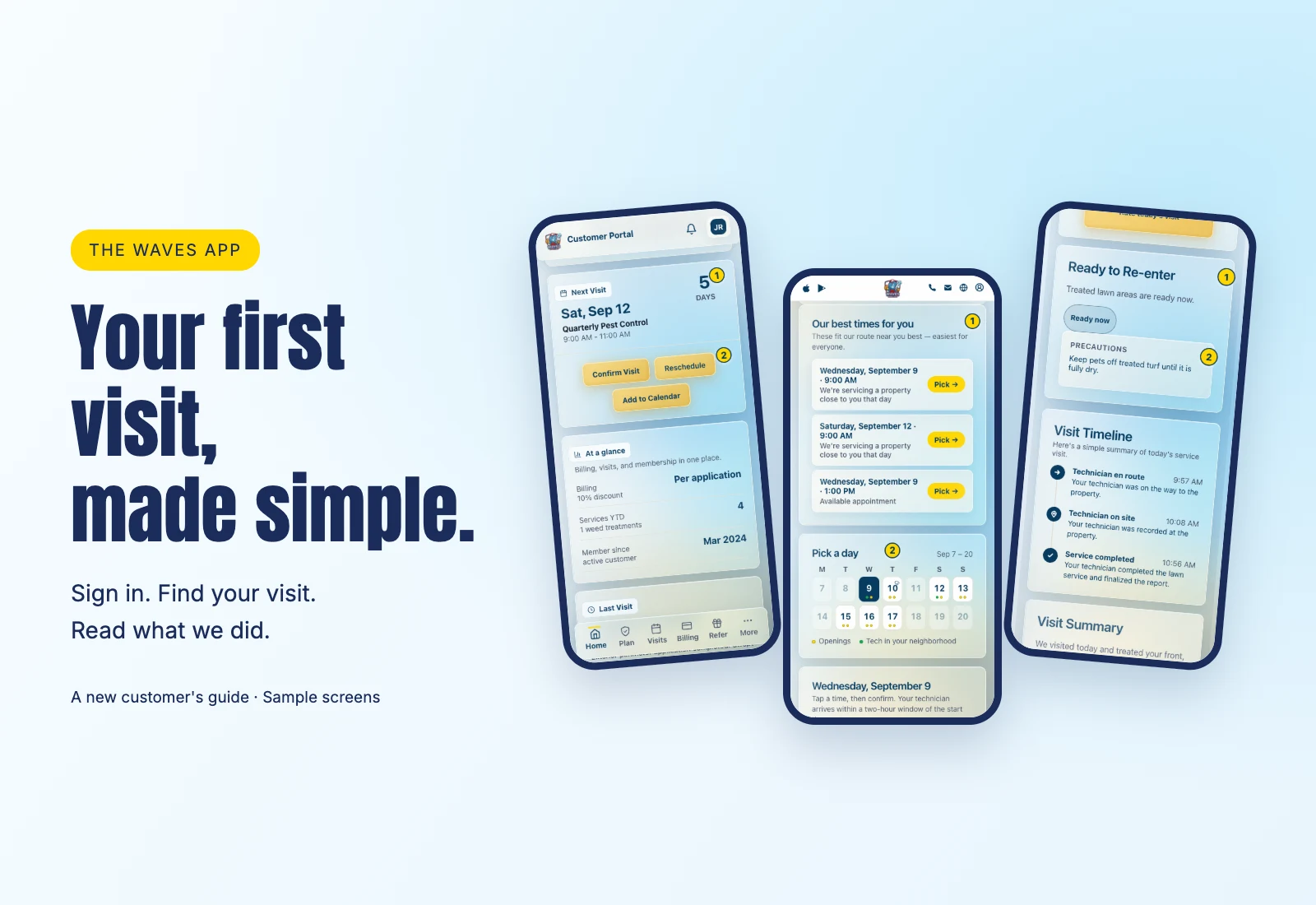
- Visit the Waves app page for iPhone and Android downloads, or choose the browser portal.
- Enter the mobile number on your Waves account and tap Send code.
- Enter the six-digit code from your text message. You don’t need a password.
On supported phones with biometrics set up, the native app prompts for Face ID or fingerprint unlock automatically when needed. There is no separate Waves switch to enable it.
Find your next visit
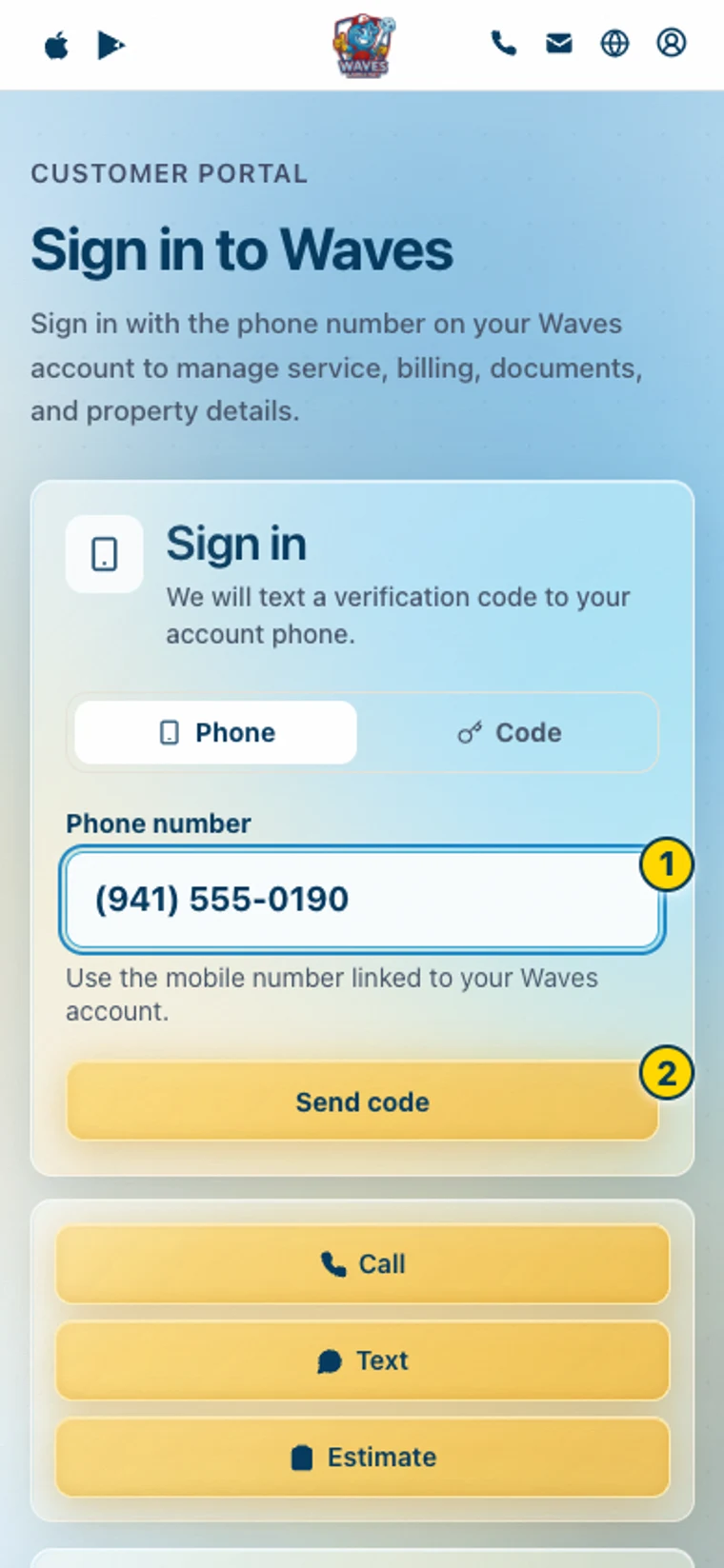
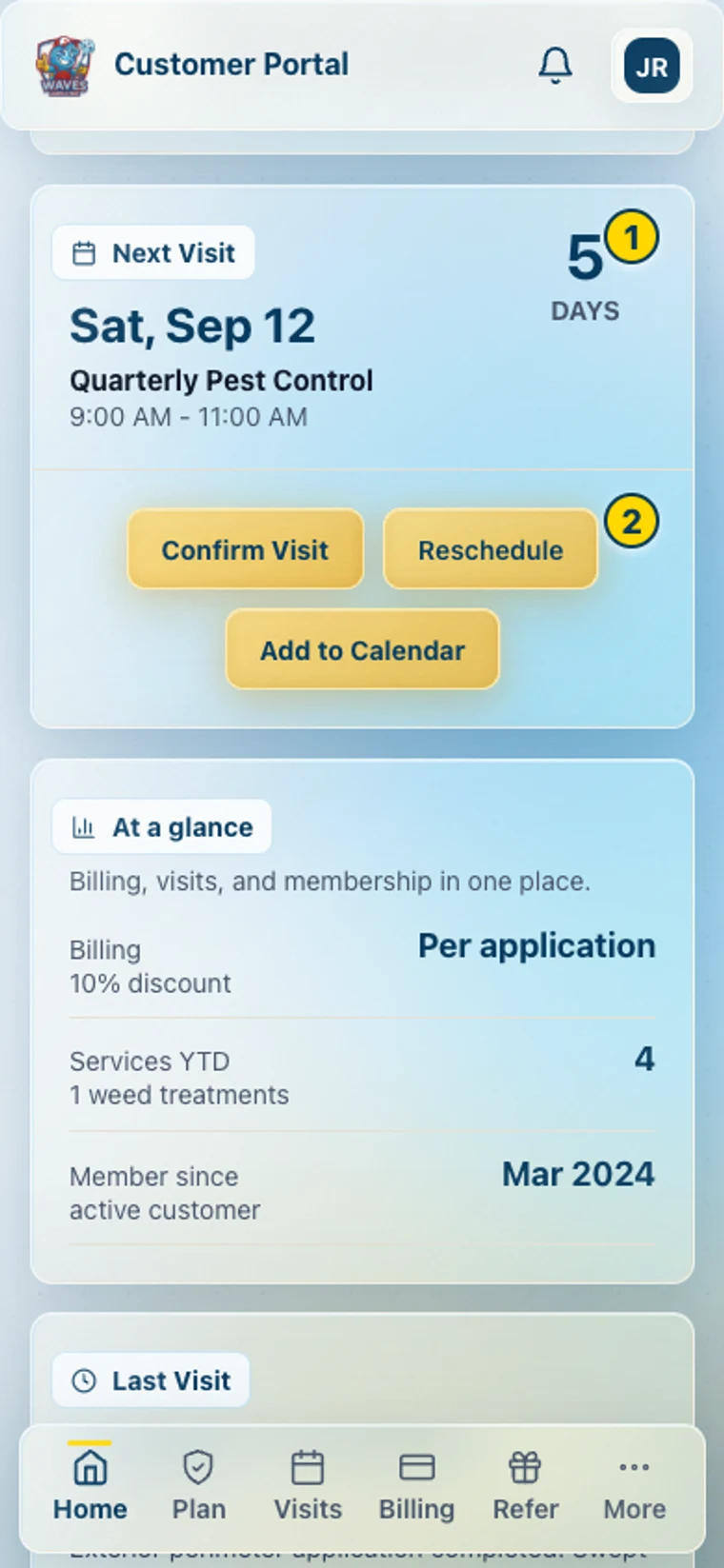
Open Home and look for Next Visit. Check the date and arrival window, then use Confirm Visit and Add to Calendar. Already confirmed? The card reflects that.
In Visits, choose the property if you manage more than one. Upcoming appointments and the You’ll hear from us timeline show what’s next.
Your appointment text also includes a browser link. That page shows the two-hour arrival window, Confirm this appointment, and weather information when available. To find the visit inside the app, open the app and select Visits.
Move a visit
- Choose Reschedule, or See open times on the appointment page.
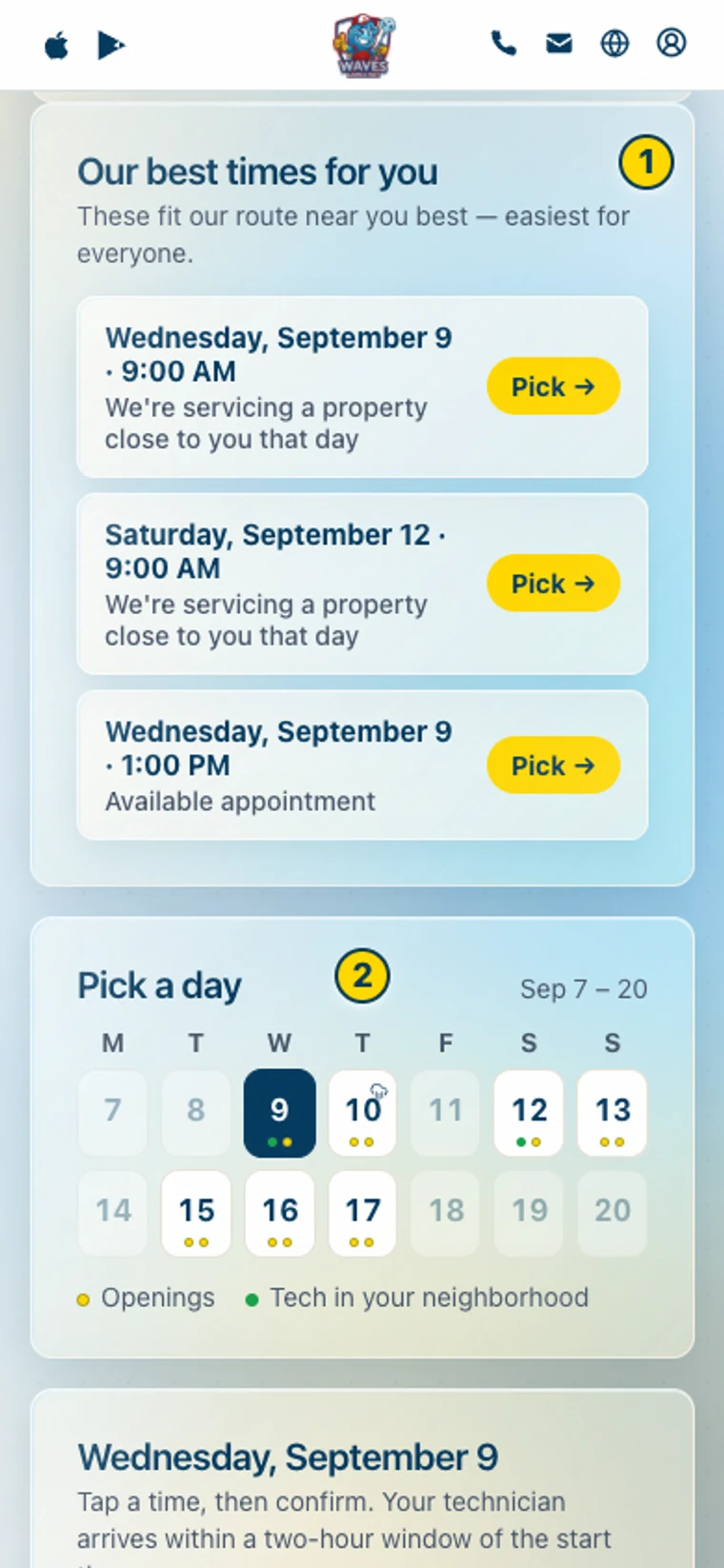
- Pick from Our best times for you, or select a day and time. Tech in your neighborhood identifies a nearby route opening.
- Read the scheduling note, then tap Confirm →. Look for You’re all set with the new arrival window.
The picker’s Waves AI — Search for a day or time box helps find openings. Searching does not book one.
Some date changes also adjust later visits; the page explains the effect before confirmation. Once the technician is en route, or if the page cannot move your appointment online, use Text Waves or Call Waves.
Follow your technician
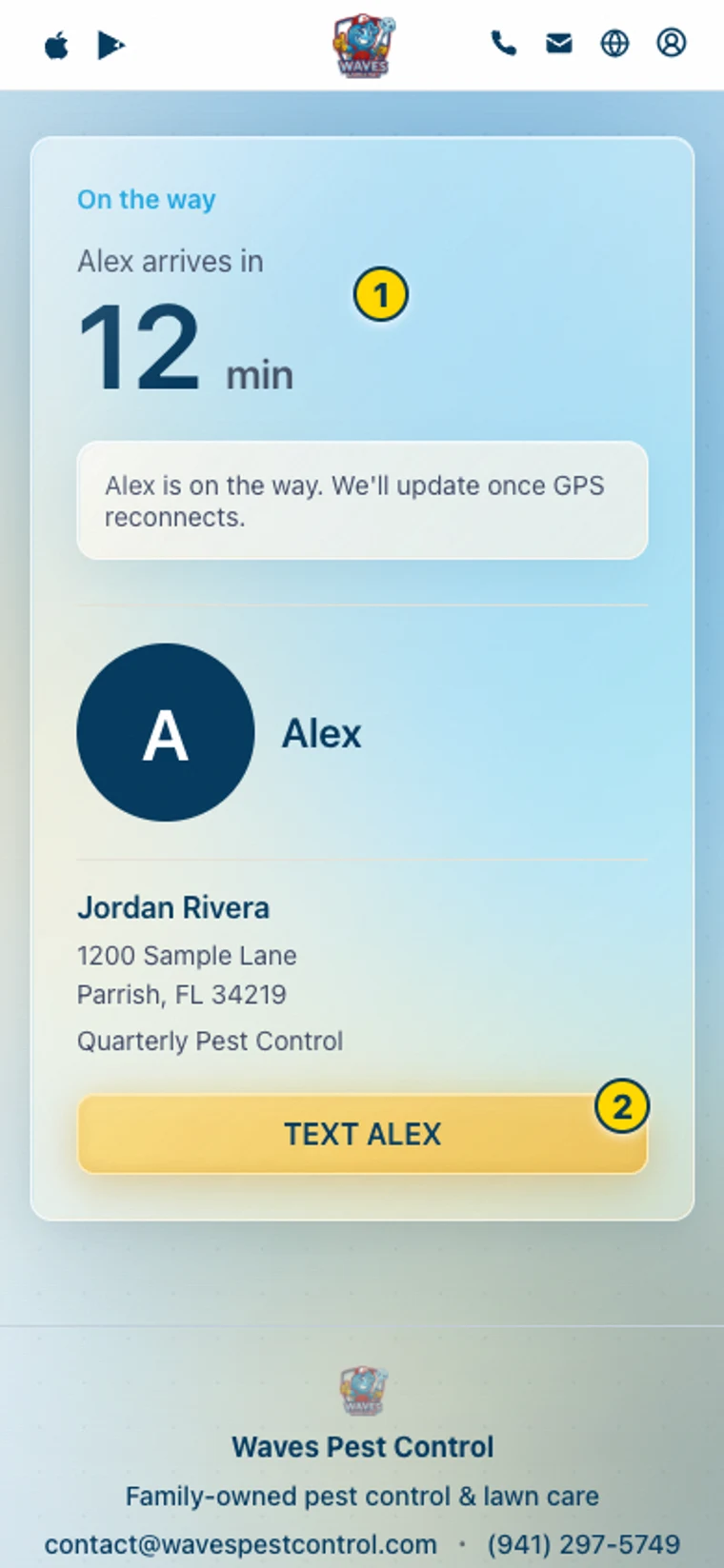
On service day, look for the tracker at the top of Home, or open Track live from your en-route text.
While your technician works through the route, you may see N stops before yours or You’re next. When they’re driving to you, the tracker can show an arrival countdown and live location. These are estimates; GPS may need to reconnect.
Use the TEXT button on the tracker if something changes, such as a locked gate or a dog outside. The button includes your technician’s name. Preparation instructions appear when available.
Read your service report
Open Visits → Completed → Open, or Documents → Service Reports. You can also use the report link in your service email or text.
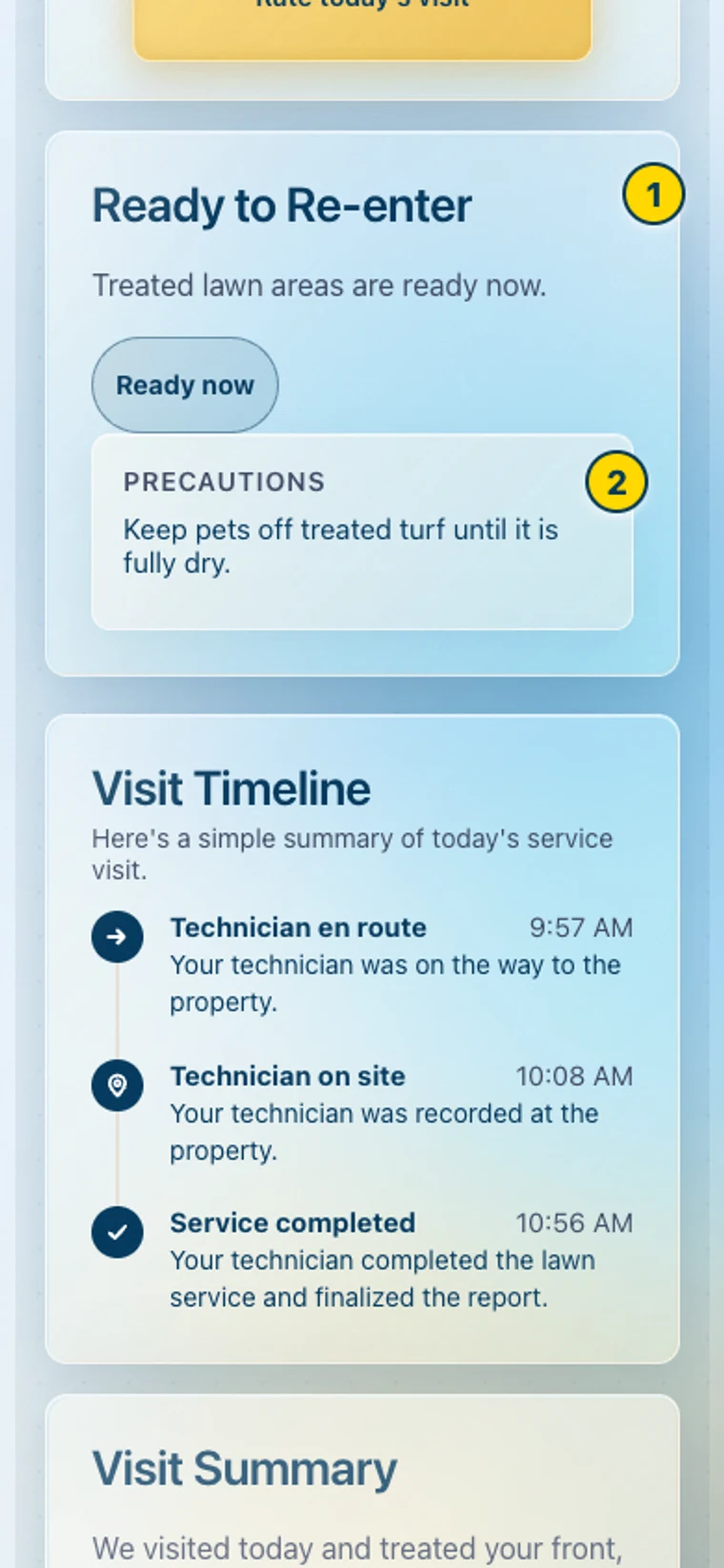
For treated areas, start with Ready to Re-enter and follow the technician’s instructions for each area. Treated areas must be dry before re-entry; your technician confirms timing. A ready-at time is specific to that treatment, not a drying rule for future services.
Then read what Waves did, Products Applied, available service-area maps, and photos. Some reports also include an approved recap video or A note from your technician. Download PDF, Share, and Print are in Report Tools.
Billing and Auto Pay
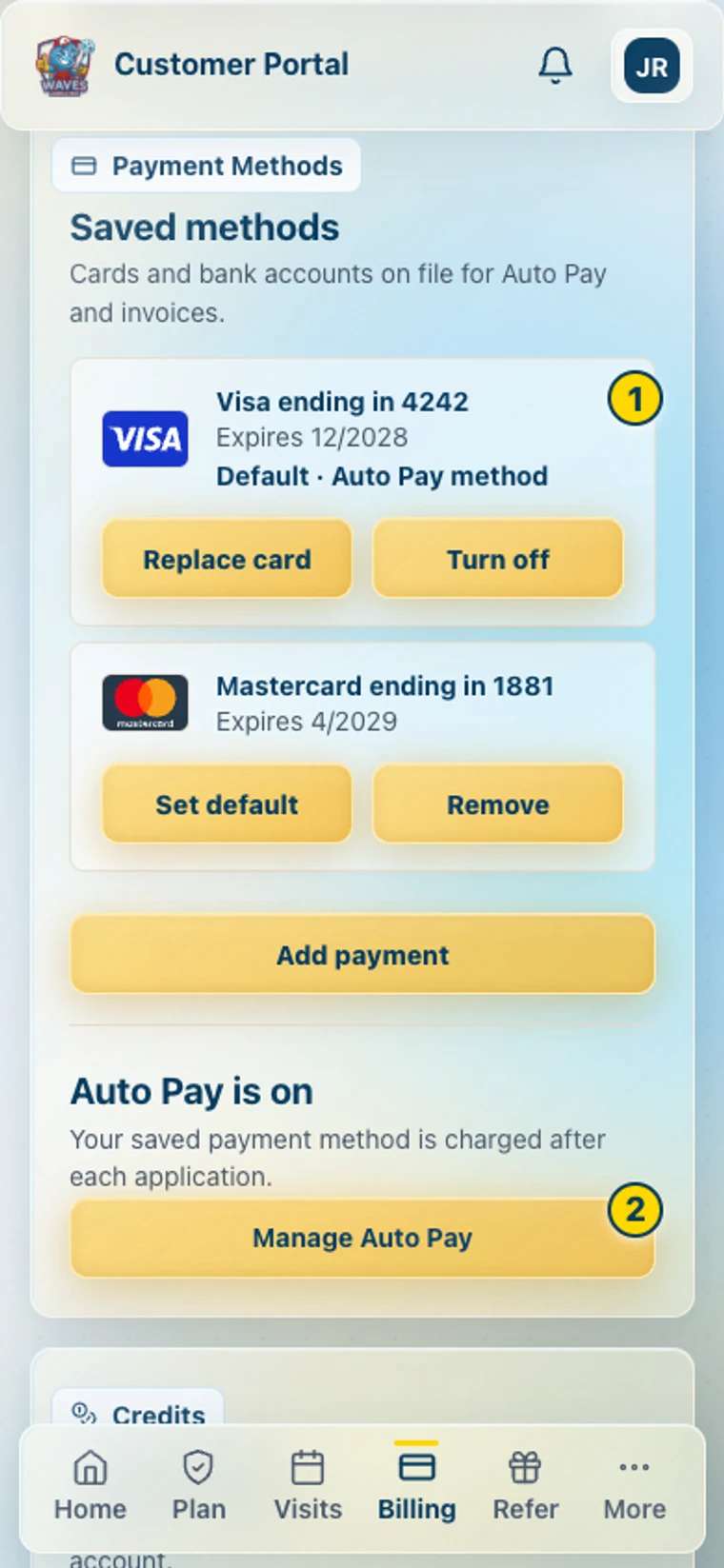
In Billing, review your balance and open invoices. Choose Pay now, select an available payment method, and check the final total before confirming. Any applicable card surcharge is shown before payment; bank payments have no added card surcharge. Available methods can depend on your account and device.
Auto Pay is a separate authorization. Its management controls let you change the payment method, pause payments, or turn it off; billing-day changes appear where supported. Review the Authorize Auto Pay consent before enabling it.
Find receipts in Payment History. Billing Preferences covers billing contact details and notices. Applying account credit automatically is a separate choice.
Your property details
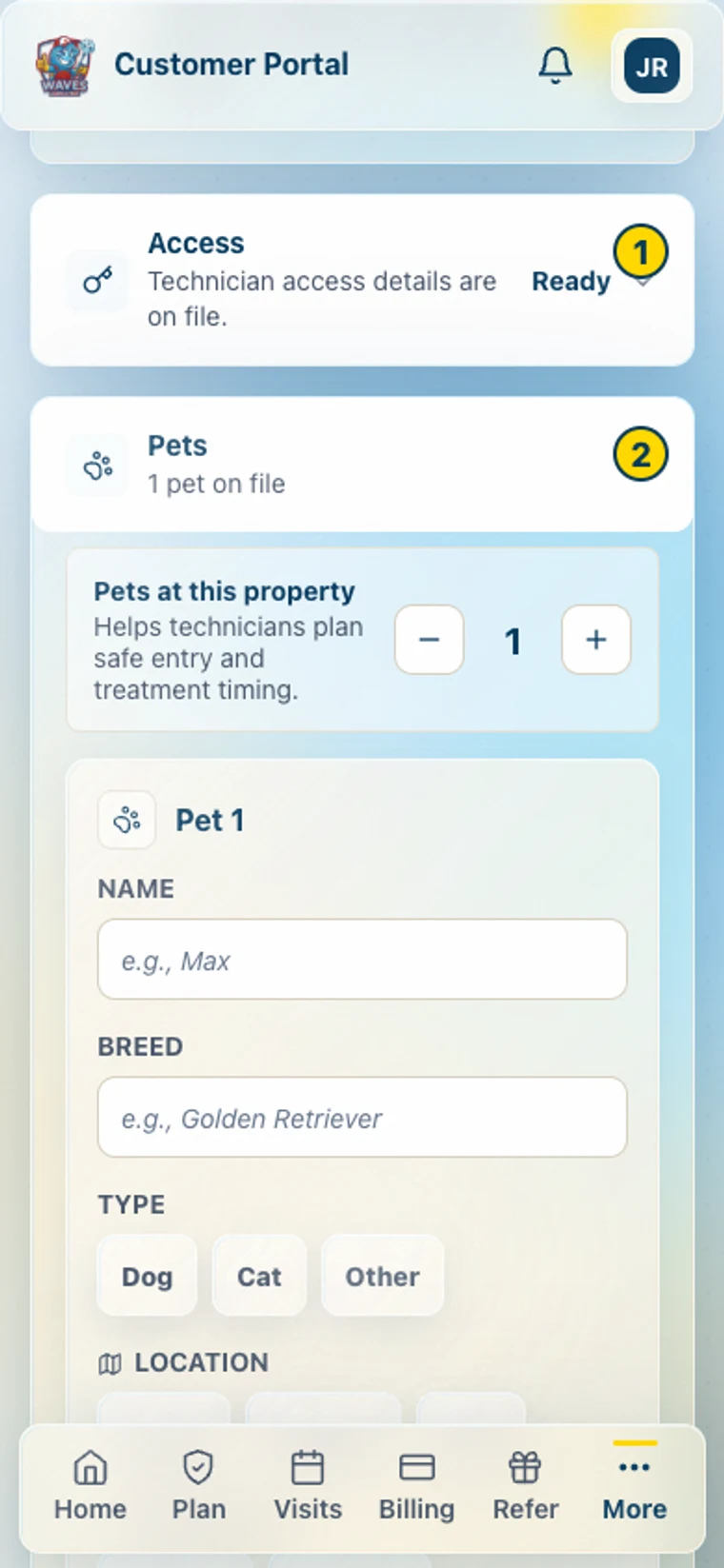
On a phone, tap More → My Property; on desktop, choose My Property.
Use Access for entry instructions and Pets for the service-day plan. Add scheduling preferences, irrigation settings, mowing information, and HOA details where relevant. Keep these current so your technician can prepare.
Under Visits, you can add up to three on-location contacts per property and choose their appointment alerts. Send these to me too controls your copy. Receiving appointment texts does not give that contact access to your whole account.
Notifications
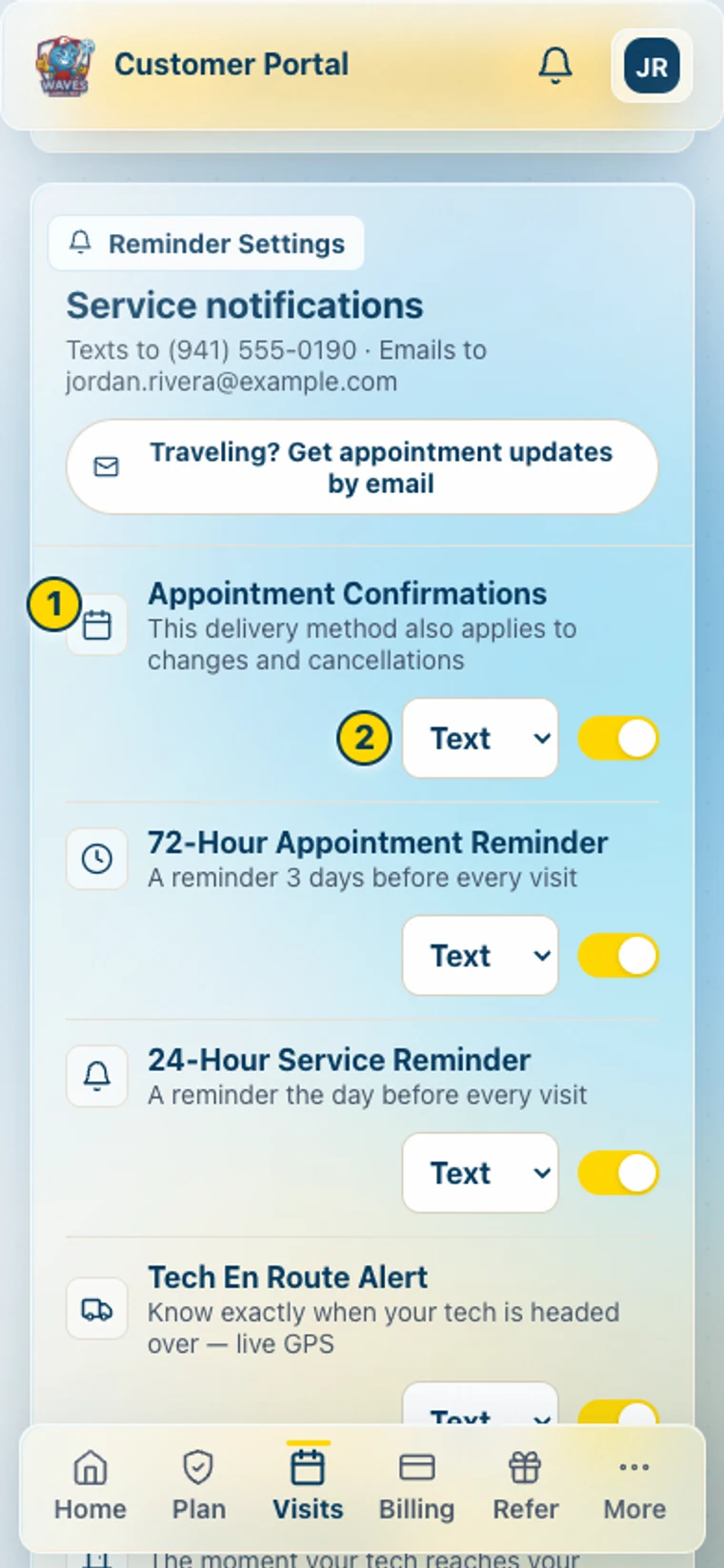
In Visits → Reminder Settings, choose which appointment updates you want. Supported rows offer Text, Email, or Both, plus an on/off switch. Email choices appear after an email address is on file. The Traveling? shortcut switches appointment updates to email.
Open the notification bell and use Enable push when offered. Allow notifications on your phone so supported updates can reach the device. Weather & Property Alerts also live in the app bell.
Device push permission and text/email preferences are separate. Billing has its own preferences, and some account notices remain required.
Get help
If covered pests return between regular visits, eligible plan members can use Book a free re-service in Visits. Follow the available options for your plan.
Use Request for a pest issue, lawn concern, billing question, or schedule change. Add photos when helpful and check My Requests afterward.
The portal’s Waves AI can answer pest questions and look up upcoming visits. Requests to reschedule, handle billing, or cancel go to a person. You can also use Call or Text in the app.
Lawn customers
Your lawn report includes an overall score and diagnostic details about coverage, color, weeds, moisture stress, and damage signals. Progress charts develop once there are at least two scored visits; the first establishes a baseline.
Look for Water This Week, recent rainfall, and mowing guidance. A saved Weekly Watering Plan, when available, appears in My Property. For controller help, use our sprinkler timer guide.
More
Documents holds available agreements and property paperwork. Learn has educational resources, and Refer & Earn holds your referral options. Plan changes and cancellation controls are under Plan → Account Options.
FAQ: using the Waves app
Is the app free?
Yes. Downloading and using it is free for Waves customers. Your service charges remain separate.
What if my code doesn’t arrive or work?
Check the account mobile number, request a fresh code, and enter the newest one. If it still fails, contact Waves.
What if my number changed?
Contact Waves to update the account number before trying to sign in with the new one.
Can my spouse receive appointment texts?
Yes. Add them as an on-location contact for the relevant property in Visits and select their alerts.
Can I see my technician on the way?
Yes. Open the tracker on Home or your Track live text link when it arrives. The arrival estimate depends on current route and GPS information.
Can I share my report?
Yes, using Share. Reports may include your address and property photos, so choose recipients accordingly.
How do I stop a text or email?
Use the relevant preferences or the message’s opt-out instructions. Reply STOP to stop texts. Required account notices may still use another permitted channel.
What does the card fee mean?
It is an applicable credit-card surcharge. Review the fee and final total on the payment screen before confirming; the bank option has no added card surcharge.